
How to Turn Your Android Phone into a Linux Terminal with Termux
Watch the full tutorial on YouTube
How to Turn Your Android Phone into a Linux Terminal with Termux
Most people think of their Android phone as a device for browsing the web, watching videos, or sending messages. What many don’t realize is that it can also become a surprisingly capable Linux environment.
With Termux, you can run Linux commands, install common development tools, connect securely to remote Linux servers using SSH, write Python programs, host a small web server, and much more—all from your phone.
Whether you’re a system administrator who needs emergency access to a server or simply want a portable Linux environment, Termux is one of the most useful apps you can install.
Prefer watching?
📺 YouTube Video:
What is Termux?
Termux is a free Android application that provides a Linux terminal environment without requiring your device to be rooted.
Unlike a simple terminal emulator, Termux includes its own package manager, allowing you to install many familiar Linux utilities such as:
- Git
- Python
- OpenSSH
- curl
- wget
- vim
- nano
- htop
- Fastfetch
This makes it ideal for development, scripting, learning Linux, and remote server administration.
Prerequisites
Before getting started, you’ll need:
- An Android device
- Internet access
- Permission to install applications outside Google Play (if prompted)
- A remote Linux server (optional, for the SSH section)
Note
The Google Play version of Termux is no longer maintained. The recommended installation source is F-Droid.
Step 1 — Install Termux
Visit the official F-Droid website and download the latest version of Termux.
Official links
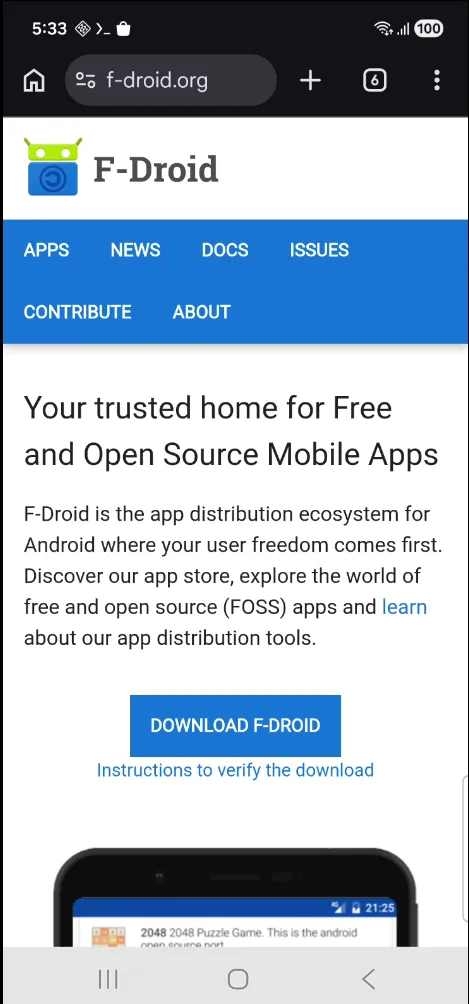
Search for Termux and download the APK.
After downloading:
- Open your Downloads folder.
- Tap the APK.
- Allow installation if Android asks for permission.
- Launch Termux.
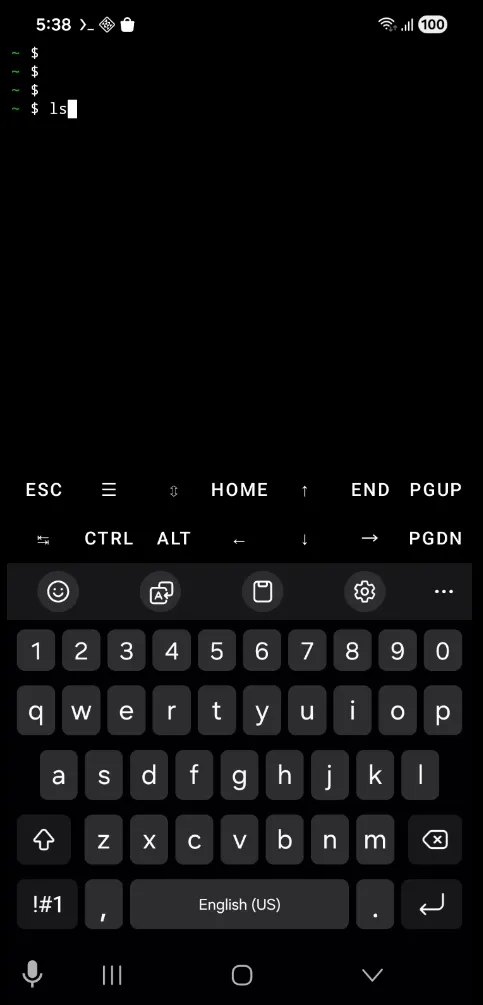
The first launch presents you with a Linux shell ready for use.
Step 2 — Update the Package Repository
Before installing any software, update the package database and upgrade installed packages.
pkg update && pkg upgradeThis ensures you’re using the latest package versions and avoids dependency issues later.
Depending on your connection speed, this may take a few minutes.
Verify
Once the command completes without errors, your package lists are up to date.
Step 3 — Install Common Linux Tools
One of the biggest advantages of Termux is its package manager.
Let’s install a few useful utilities.
pkg install git python openssh fastfetchThese packages provide:
| Package | Purpose |
|---|---|
| Git | Clone repositories and manage source code |
| Python | Run Python scripts and applications |
| OpenSSH | Connect securely to remote Linux machines |
| Fastfetch | Display system information |
Type Y when prompted.
Step 4 — Run Basic Linux Commands
At this point, your Android phone behaves much like a Linux machine.
For example:
List files:
lsCheck your network connectivity:
ping google.comDisplay your IP address:
ip addrIf you’ve used Linux before, most of these commands will already feel familiar.
Step 5 — Display Android System Information
One of the most satisfying commands to run is Fastfetch.
fastfetch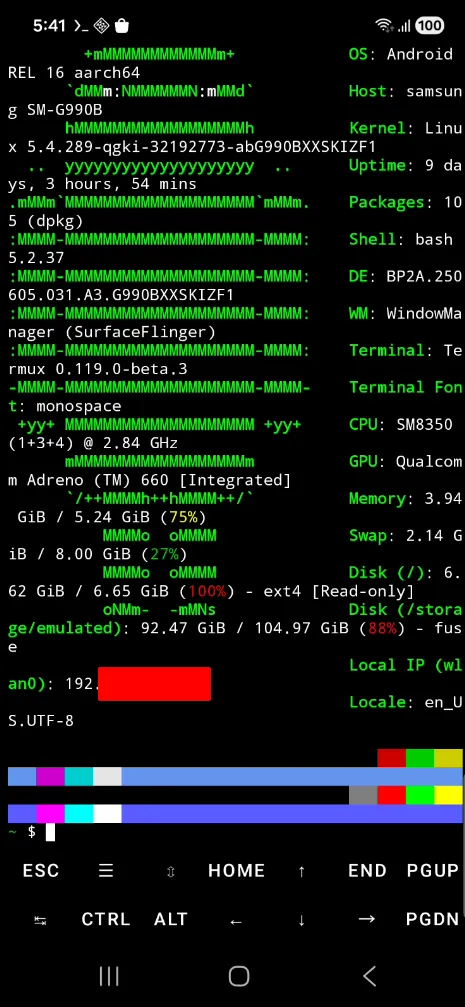
Fastfetch displays information such as:
- Android version
- Device model
- CPU
- Memory
- Kernel
- Terminal
- Shell
At first glance, it almost looks like you’re running a desktop Linux distribution.
Step 6 — Connect to a Linux Server Using SSH
This is where Termux becomes incredibly useful.
Instead of carrying a laptop everywhere, you can administer Linux servers directly from your phone.
To connect to a remote machine:
ssh username@server-ipOr if you’re using hostnames:
ssh username@server-nameEnter the user’s password when prompted.
If authentication succeeds, you’ll be logged into the remote Linux system.
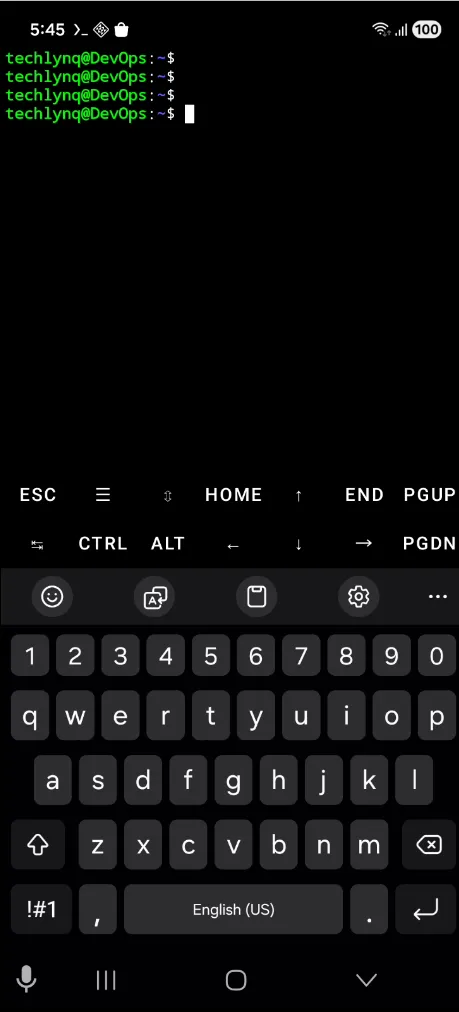
Your terminal prompt will change, indicating you’re no longer working inside Termux but on the remote server.
Verify the Connection
Run:
hostnameThe returned hostname should match your Linux server.
You can also run:
pwdor
lsto confirm you’re working on the remote system.
Tip
For regular server administration, consider using SSH keys instead of passwords.
Step 7 — Start a Simple Python Web Server on the Linux Machine
Once connected through SSH, you can perform the same administrative tasks you normally would from a desktop computer.
One simple example is starting Python’s built-in web server.
python3 -m http.server 8080Python immediately starts serving files from the current directory.
You’ll see output similar to:
Serving HTTP on 0.0.0.0 port 8080Open a browser and visit:
http://SERVER-IP:8080Replace SERVER-IP with the IP address of your Linux machine.
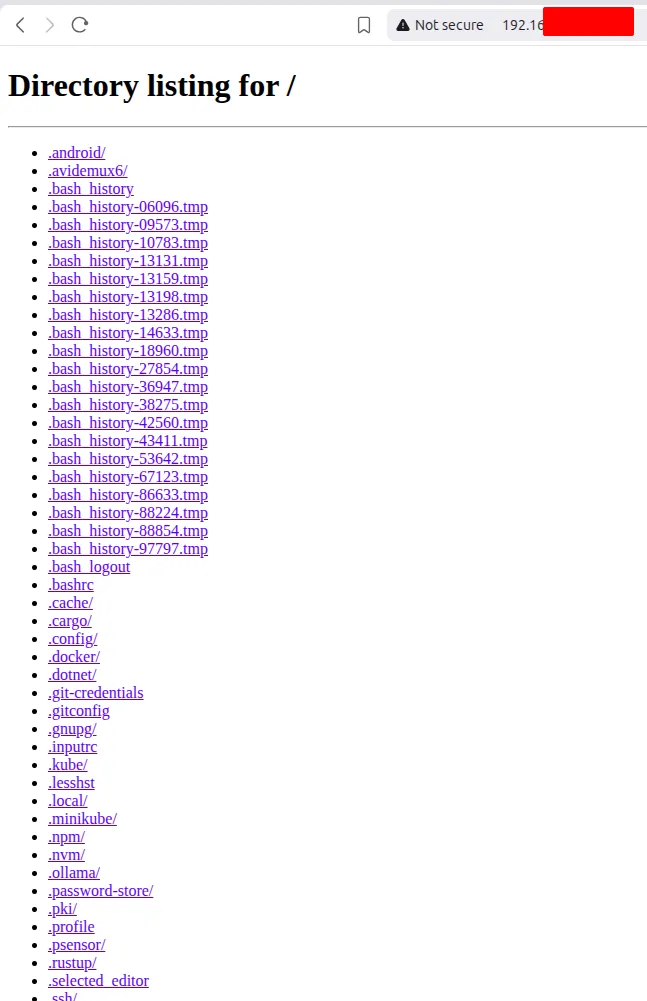
If everything is working correctly, you’ll see the directory listing or website being served.
Refreshing the page generates new requests in the terminal, confirming the server is responding.
Step 8 — Host a Website Directly from Your Android Phone
Termux isn’t limited to remote administration.
You can also run services locally on your Android device.
Create a project folder:
mkdir web
cd web
Create a simple HTML page:
echo "Hello from Android" > index.htmlNow start Python’s web server:
python3 -m http.server 8080Open your browser and visit:
http://localhost:8080You should see:
Hello from Android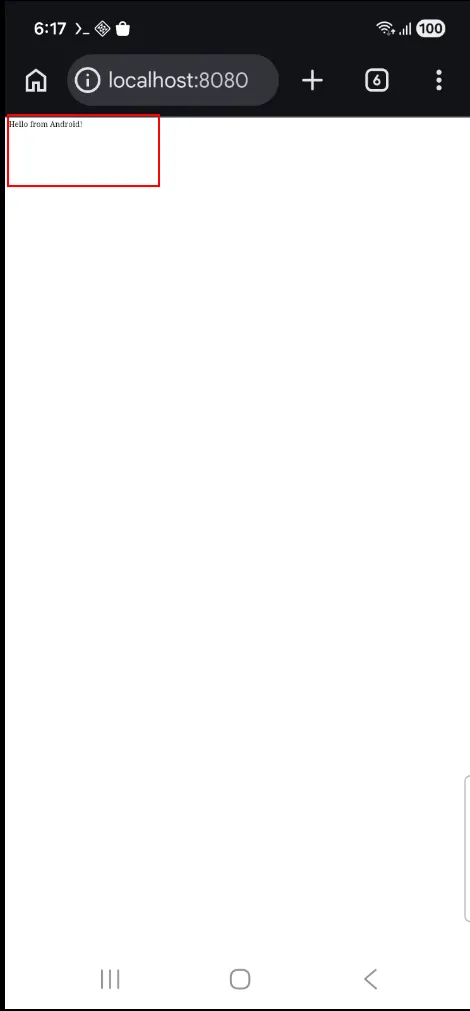
Congratulations—you’ve just hosted a webpage directly from your phone.
Bonus Tools Worth Installing
Termux gives you access to hundreds of packages.
Here are two worth installing immediately.
htop
Install:
pkg install htopRun:
htopThis interactive process viewer displays CPU usage, memory usage, running processes, and system load.
Exit by pressing:
qcmatrix
Install:
pkg install cmatrixRun:
cmatrixWhile it doesn’t improve productivity, it’s a fun demonstration that many classic Linux programs run perfectly inside Termux.
Troubleshooting
pkg command not found
Make sure you’re using Termux, not a generic Android terminal emulator.
Unable to install the APK
Android may block installations from unknown sources.
Allow installation from your browser or file manager when prompted.
SSH connection refused
Verify that:
- The SSH server is installed on the remote Linux machine.
- The SSH service is running.
- Port 22 is open.
- Both devices can reach each other over the network.
Python web server isn’t accessible
If you’re serving files from a remote Linux machine:
- Confirm you’re using the correct IP address.
- Verify port 8080 isn’t blocked by a firewall.
- Make sure the Python server is still running.
Frequently Asked Questions
Do I need to root my Android phone?
No.
Termux works on standard Android devices without root access.
Is Termux free?
Yes.
Termux is open-source and freely available through F-Droid.
Can I use Git inside Termux?
Yes.
After installing Git, you can clone repositories, manage projects, and use Git exactly as you would on Linux.
Can I program in Python?
Absolutely.
Termux supports Python, making it a great environment for learning, scripting, and testing small projects.
Can I administer Linux servers?
Yes.
With OpenSSH installed, Termux is an excellent lightweight SSH client for managing Linux servers from anywhere.
Conclusion
Termux transforms an Android phone into a capable Linux environment that’s useful for learning, development, and system administration. In just a few minutes, you can install familiar Linux tools, connect securely to remote servers, run Python applications, and even host a simple website directly from your device.
While it won’t replace a full desktop Linux installation for every task, it’s an incredibly practical tool to have available whenever you need quick access to a terminal without carrying a laptop.
Next Steps
If you’re interested in getting even more out of Termux, consider exploring:
- Installing Vim or Nano for editing files
- Using SSH key authentication instead of passwords
- Running Git repositories directly on your phone
- Automating tasks with Python scripts
- Managing Docker hosts remotely over SSH
Official Documentation
- F-Droid: https://f-droid.org/
- Termux Wiki: https://wiki.termux.com/
- Termux GitHub: https://github.com/termux
- OpenSSH: https://www.openssh.com/
- Python Documentation: https://docs.python.org/3/library/http.server.html
Related Articles
- How to Fix “No Such File or Directory” in Linux
- Fix Linux “Permission Denied”
- How to Check CPU and Memory Usage in Linux
- How to Connect to a Linux Server Using SSH
- How to Install Git on Ubuntu
- How to Install Python on Ubuntu
Enjoyed this article?
Subscribe to my YouTube channel for more content like this